HOW Smart PDF Pilot WORKS

From open to finished — your PDFs, on Mac.

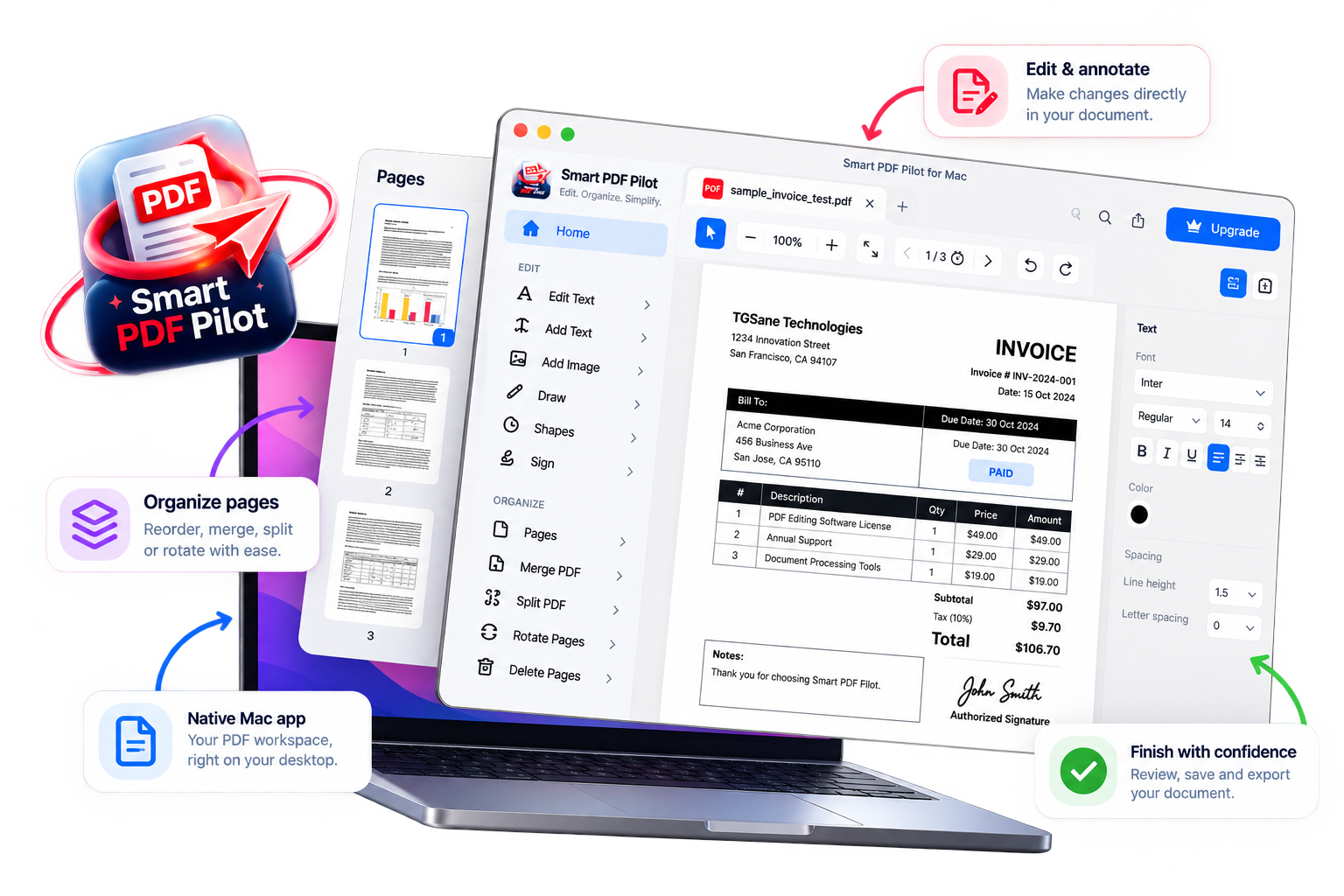
Smart PDF Pilot brings everyday PDF tasks into one Mac desktop workspace. Open a document, edit its content, organize pages, annotate important details and prepare the finished file without constantly switching between different applications.

✓ Designed for Mac ✓ Everyday PDF tools ✓ One desktop workspace
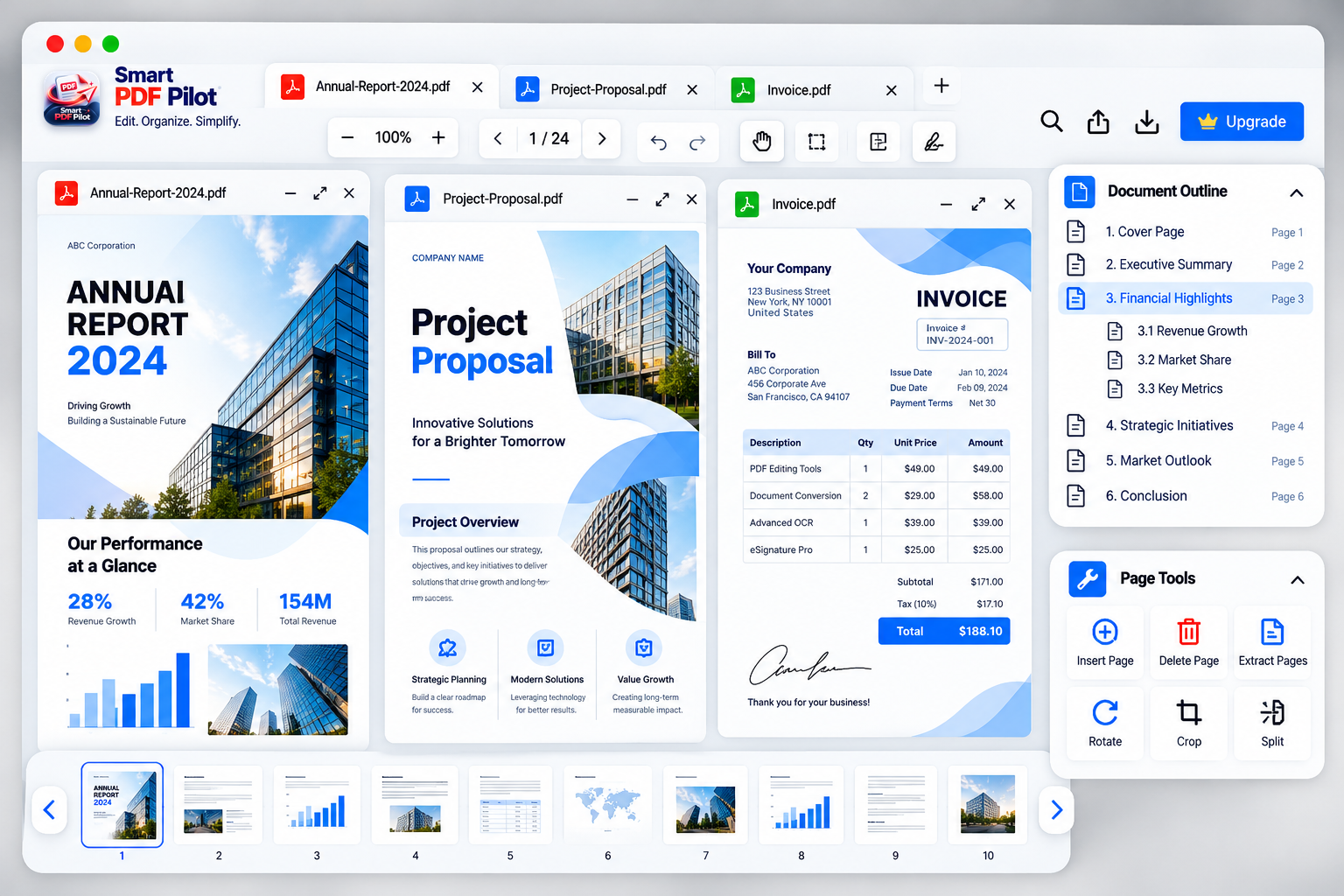
Smart PDF Pilot Mac desktop PDF workspace showing a document and editing controls
⌘
One focused workspace For your everyday PDF tasks
Made for your Mac workflow
YOUR WORKFLOW, EXPLAINED

Five steps from a PDF file to a finished document.

Every document has a different purpose. Smart PDF Pilot gives you a practical way to open, change, arrange and review your PDF while keeping the document at the center of the process.

01 OPEN

Start with the document you need.

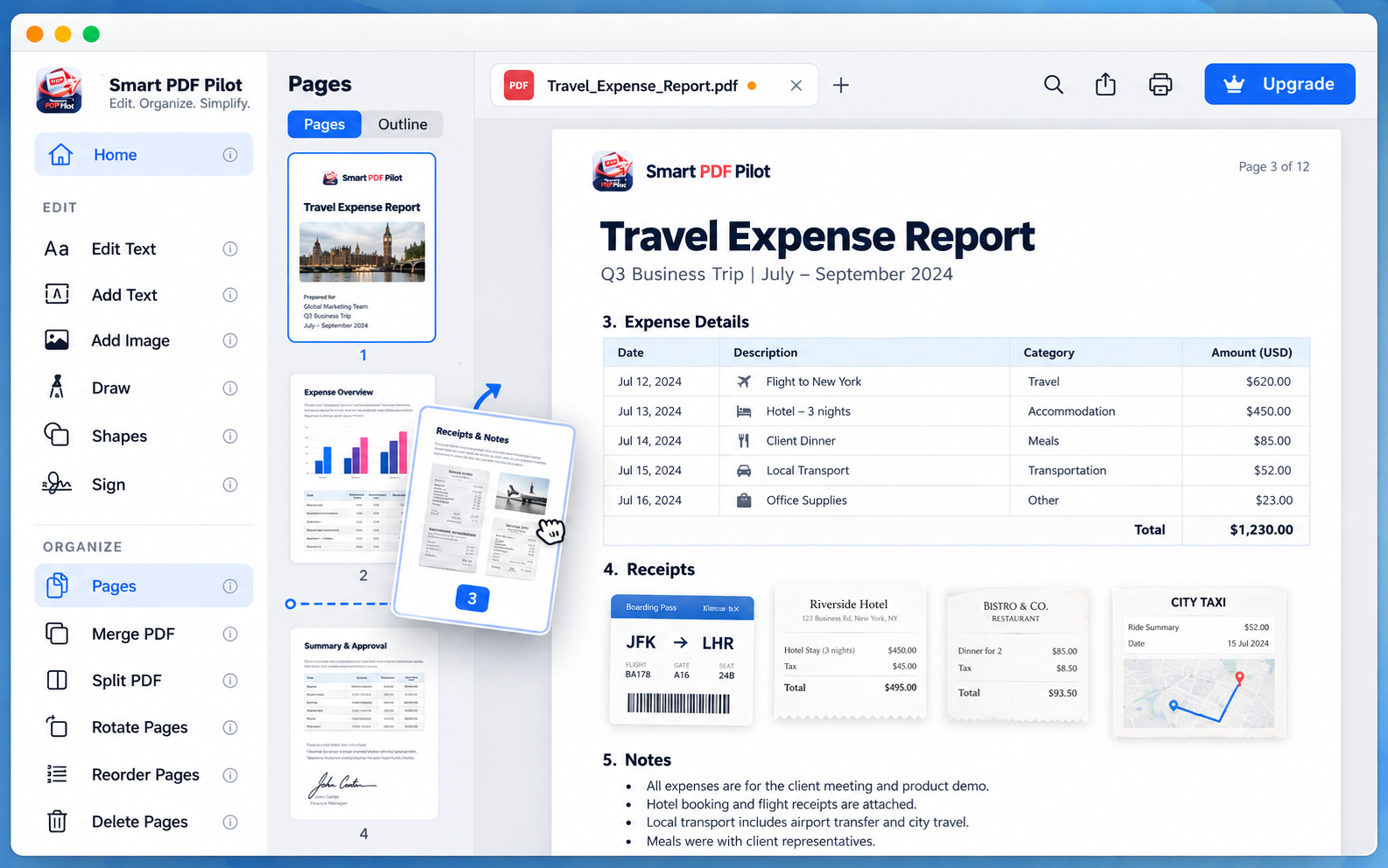
Open a PDF on your Mac and bring the document into your workspace. Page thumbnails and visible controls help you understand the structure of the file before making changes.

Whether you are checking an invoice, reviewing a proposal or preparing a form, begin with the actual document you want to work on.

Explore app features ↗
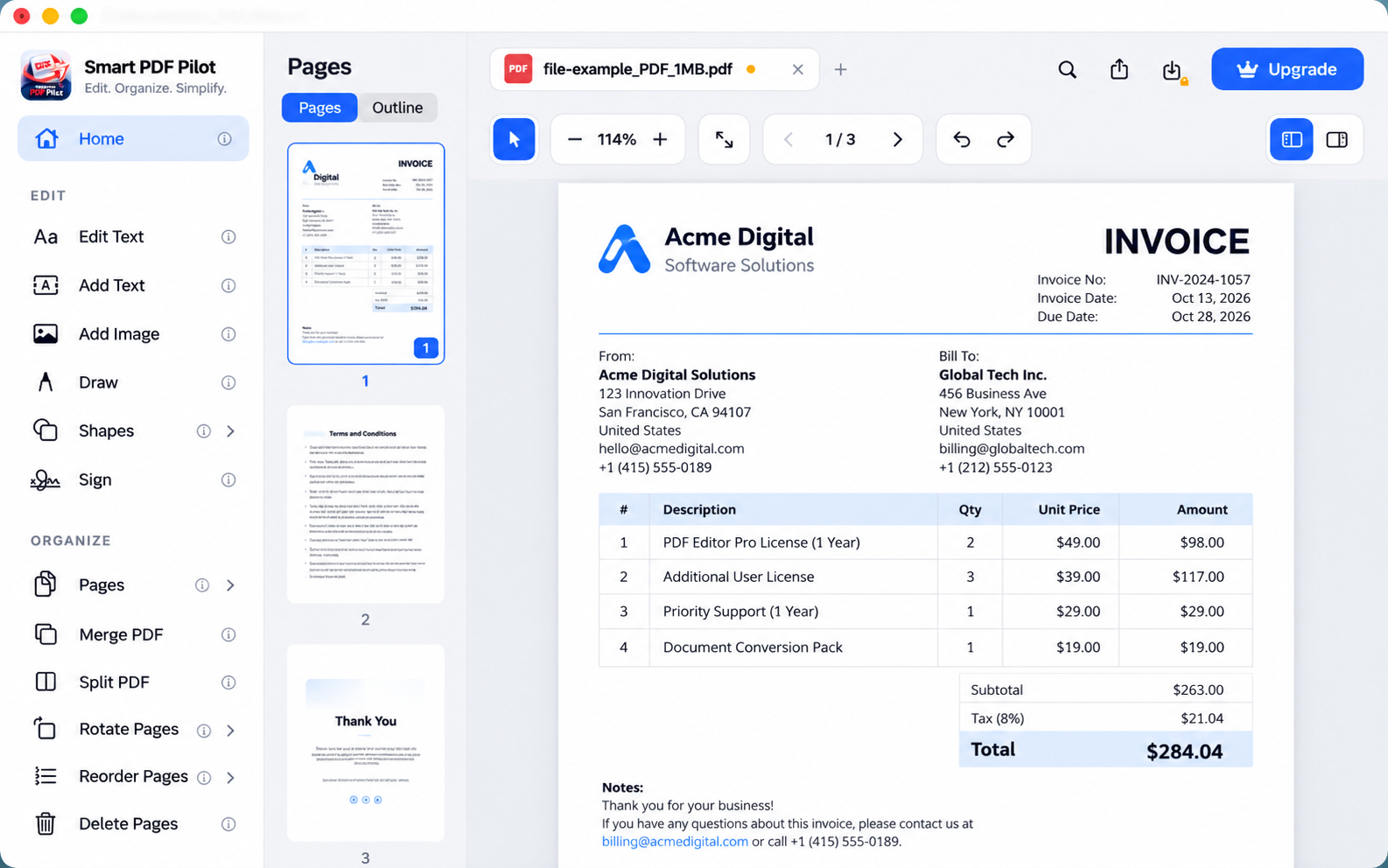
Opening and viewing a PDF in the Smart PDF Pilot Mac app
STEP 01 Open and understand your document.
02 EDIT

Make changes with the page in view.

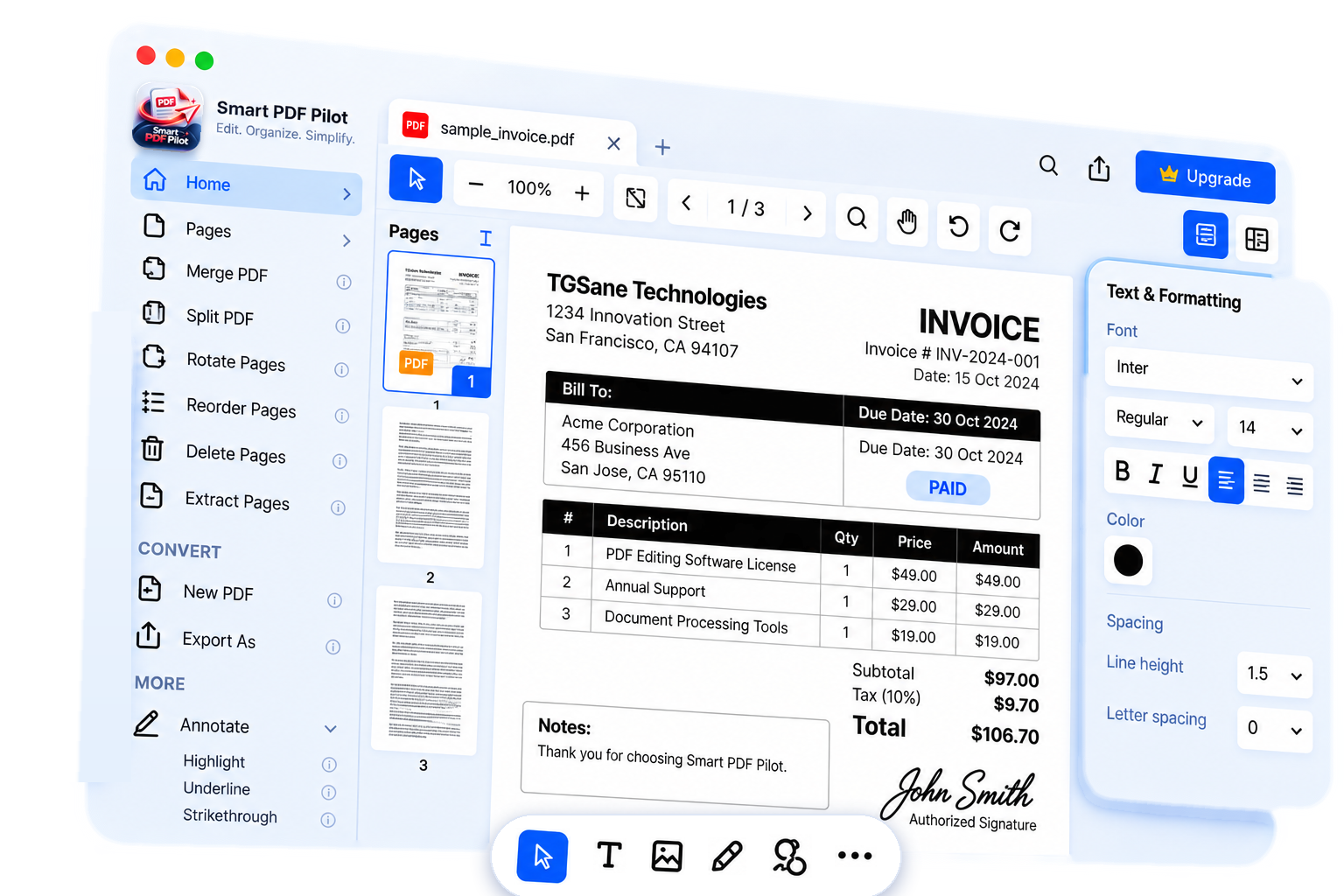
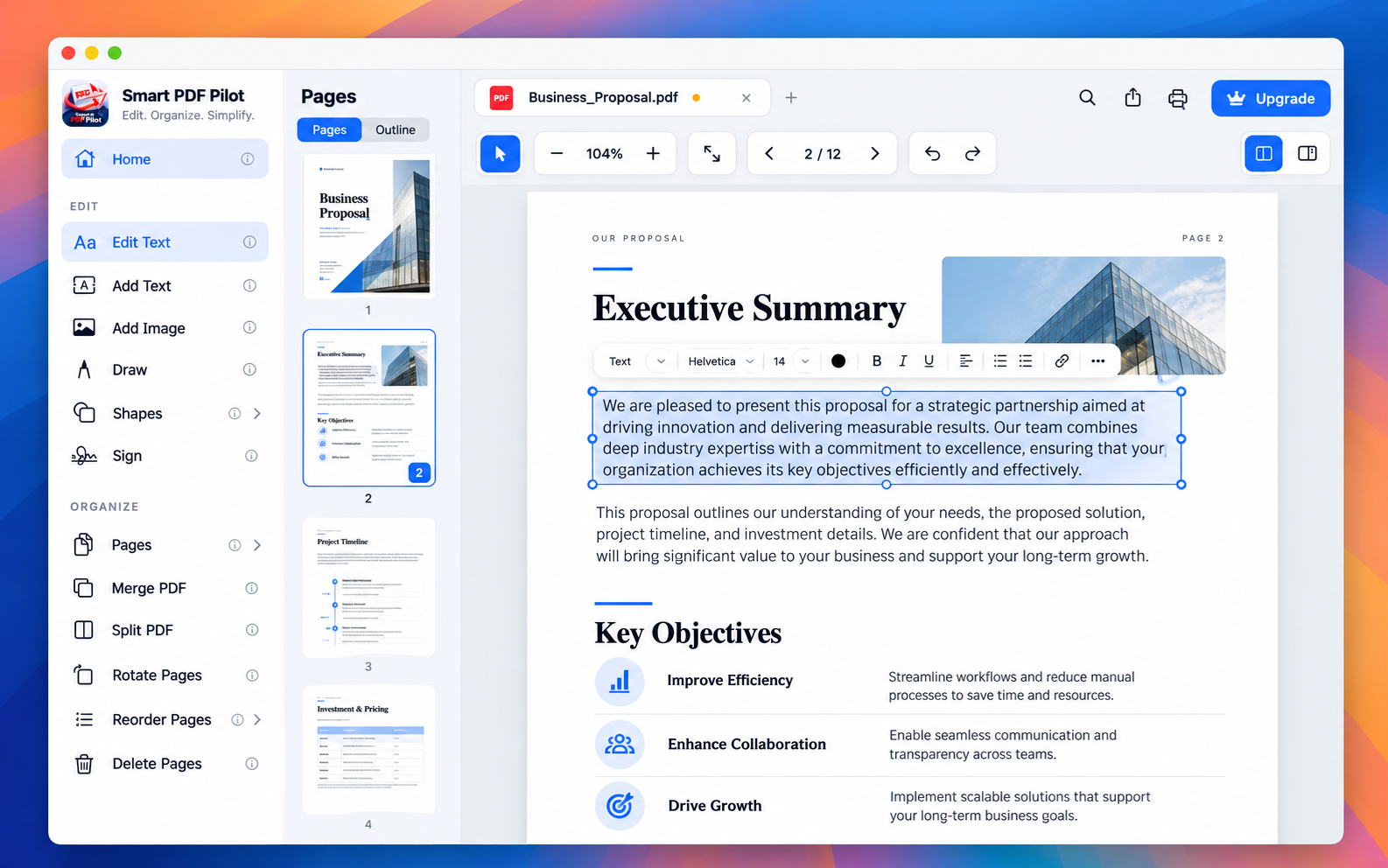
Work on the content that needs attention. Depending on the tools supported by your version, you can edit text, add images or insert text in the relevant parts of a PDF.

Keeping the page visible as you work makes it easier to understand where a change belongs and review the surrounding content before moving on.

Discover editing tools ↗
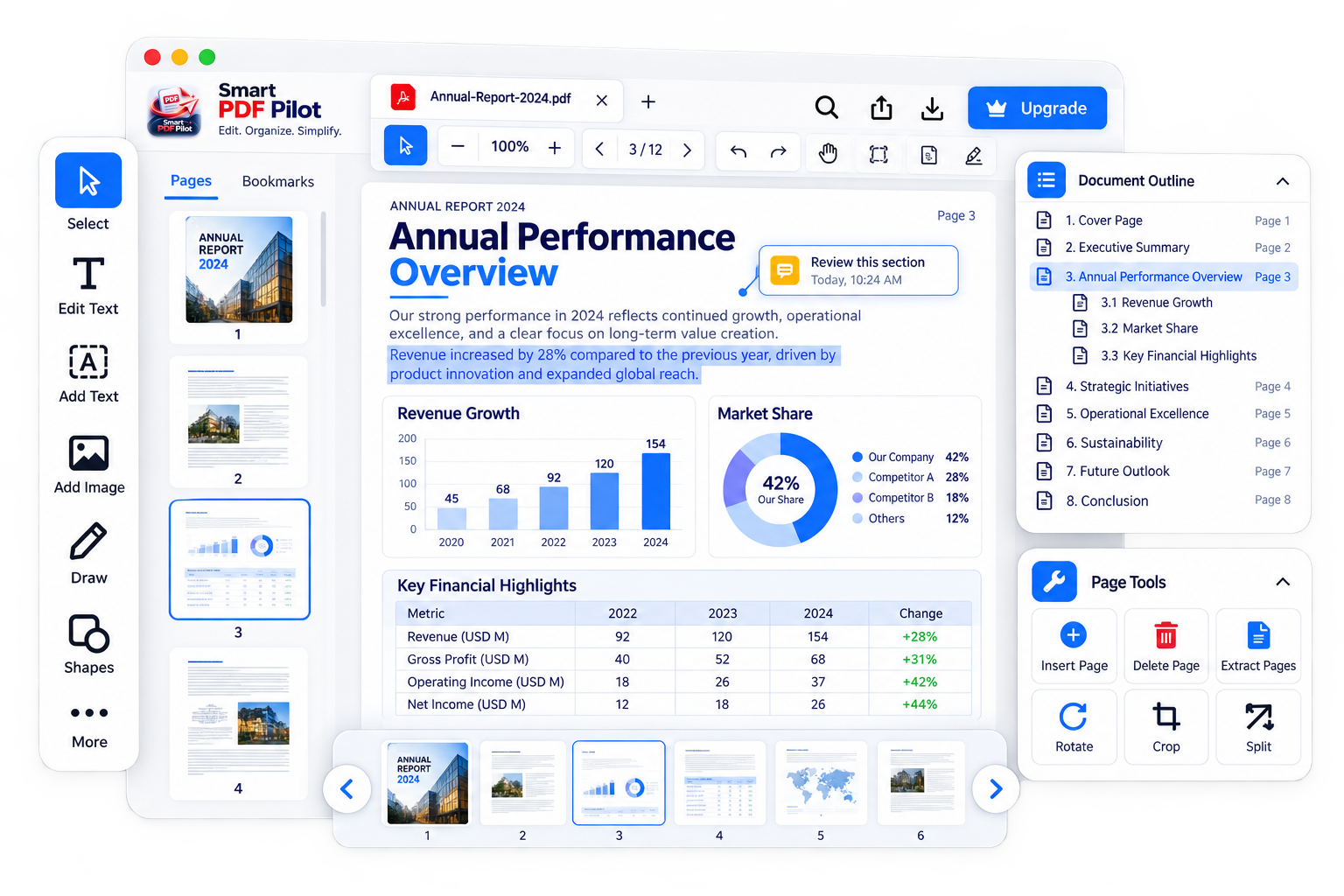
PDF editing workspace with document content and editing controls
STEP 02 Work on the content that matters.
03 ORGANIZE

Give every page its proper place.

A document can contain extra pages, sections that belong together or pages that need a different order. Page management tools help you shape the document around its intended purpose.

Use the relevant page tools to organize, rotate, split or remove pages where those actions are supported, then review the structure before continuing.

Explore page management ↗
Smart PDF Pilot document workspace for managing and reviewing PDF pages
STEP 03 Organize pages into a clearer document.
04 COMPLETE

Add the details that make a document ready.

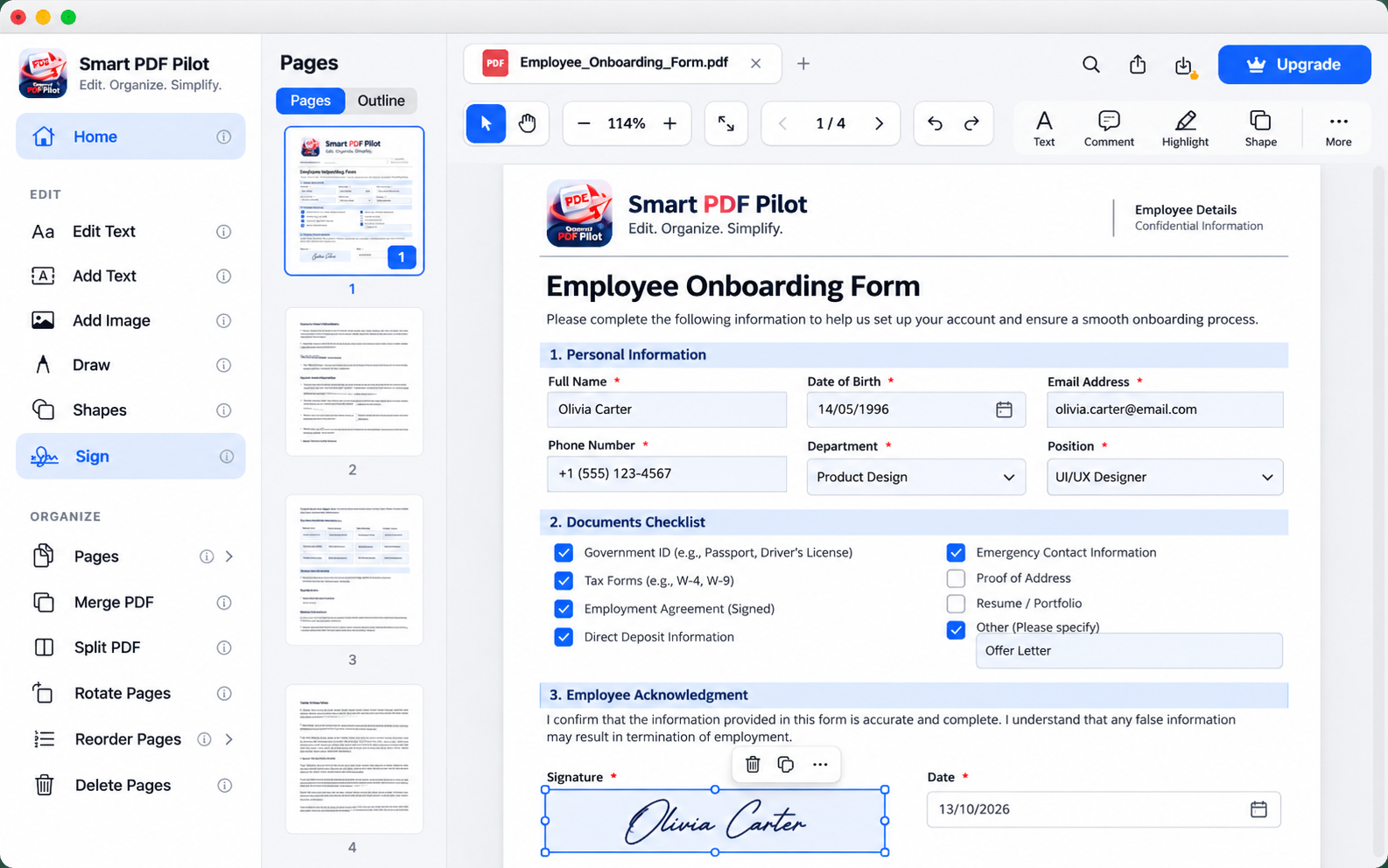
Add annotations, highlight important information, draw on pages, work with form fields or prepare a signature using the corresponding tools available in the app.

These finishing tasks are useful when preparing business paperwork, completing forms, reviewing study materials or getting a document ready for someone else to read.

Explore annotation and form tools ↗
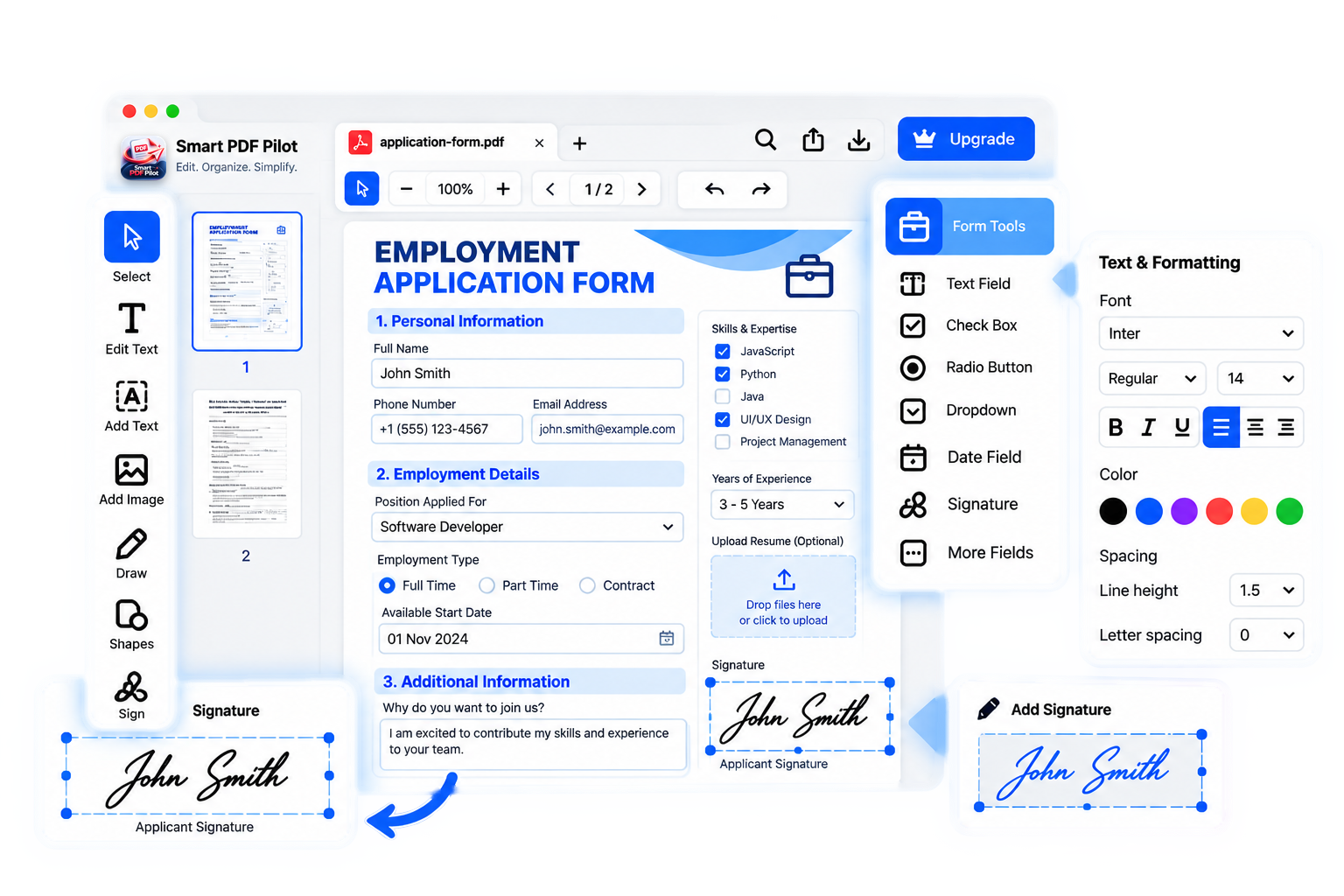
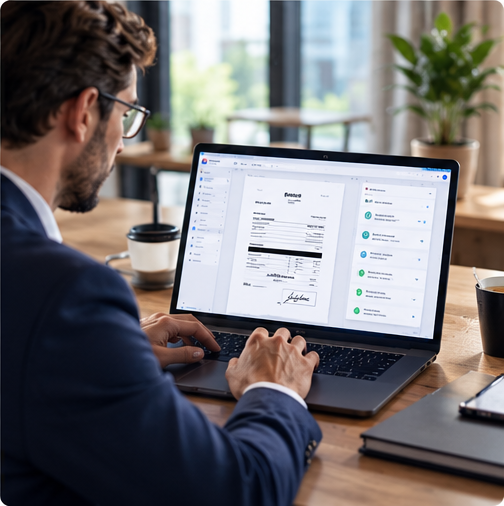
PDF form and document completion interface in Smart PDF Pilot
STEP 04 Annotate, fill and prepare your PDF.
05 REVIEW

Check the result before you finish.

Take a final look at the document's content, page order, annotations and other changes. Reviewing the result helps you catch missing details before you save or share the file.

Once everything looks right, use the appropriate save or export option available in your Smart PDF Pilot version to complete your workflow.

Read common questions ↗
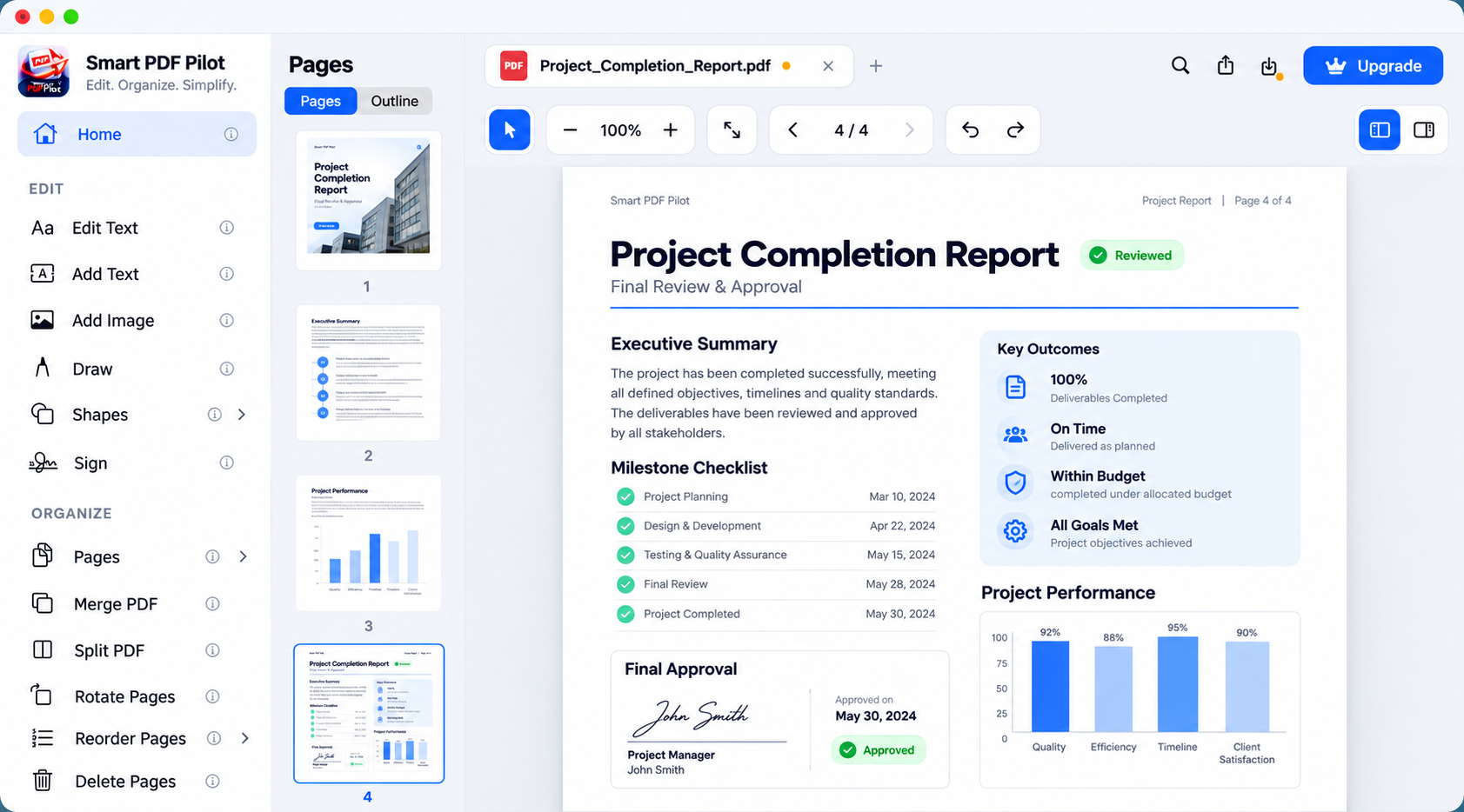
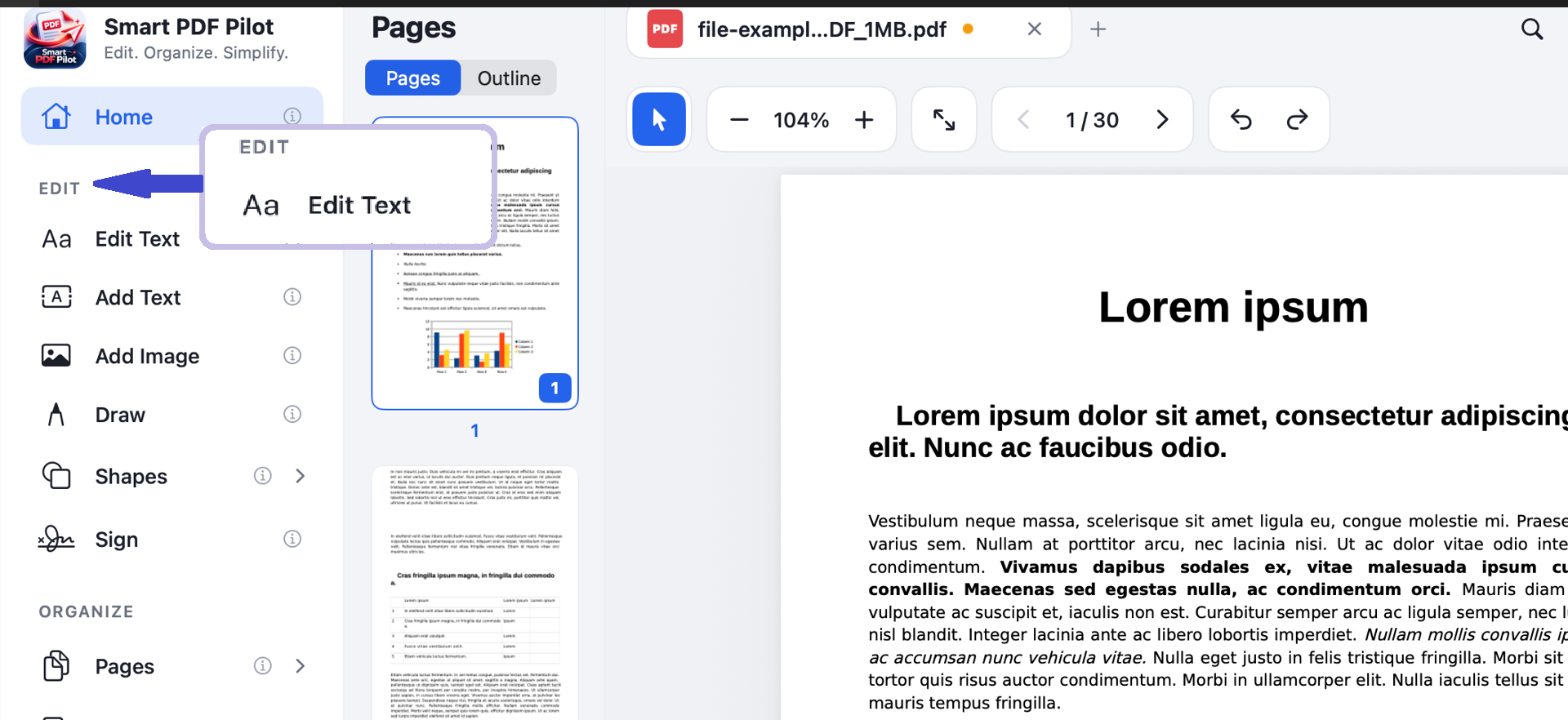
Reviewing the final PDF document in the Smart PDF Pilot desktop workspace
STEP 05 Review your work and finish the document.
WHY THE MAC EXPERIENCE MATTERS

Built around your desktop document workflow.

Smart PDF Pilot is a Mac desktop app, so everything stays centered on the PDF in front of you: open it, use the right tool, review your changes and finish the document from your Mac.

Explore all features →
  • ✓

    A focused workspace

    Keep the document at the center of your task.

  • ✓

    Tools for different stages

    Move between editing, page management and review.

  • ✓

    A clear finish

    Review the result before saving or sharing your file.

MADE FOR EVERYDAY DOCUMENTS

One Mac app. Different kinds of PDF work.

From a single form to a document with multiple pages, your workflow depends on what you need to accomplish. Here are examples of common PDF tasks Smart PDF Pilot can help you handle.

Team reviewing business reports
01
BUSINESS DOCUMENTS

Invoices, proposals & reports

Review reports, update supported content and prepare business documents to share.

Explore tools ↗
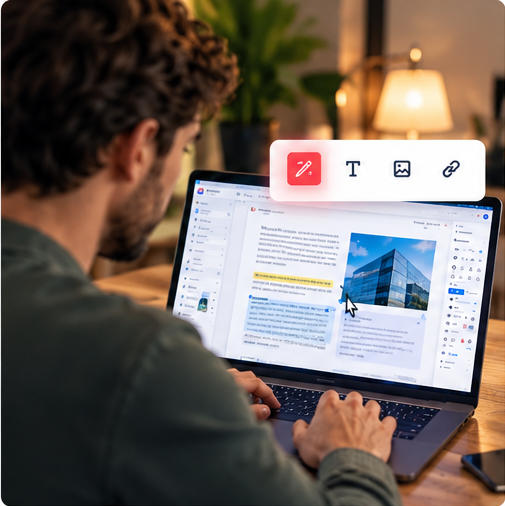
Editing a PDF proposal on a Mac
02
DOCUMENT EDITING

Content & corrections

Make supported text and image changes while keeping the document in view.

Explore tools ↗
Completing forms and paperwork
03
FORMS & PAPERWORK

Applications & contracts

Review paperwork and complete supported document fields.

Explore tools ↗
Organizing PDF pages on a desktop monitor
04
PAGE ORGANIZATION

Multi-page documents

Arrange, rotate and manage pages using the available page tools.

Explore tools ↗
Reviewing and annotating a PDF on a tablet
05
REVIEW & ANNOTATION

Notes & highlights

Highlight important information and add supported annotations.

Explore tools ↗
Checking a completed PDF document
06
FINAL DOCUMENT CHECK

Review before sharing

Check page flow and layout before saving or sharing your document.

Explore tools ↗
A PRACTICAL PDF GUIDE

How to work with PDF files on a Mac.

Start with the task, not a long list of tools. Identify what needs to change, use the relevant feature and check the result before finishing.

  1. 01
    BEFORE YOU EDIT

    Understand the file first

    Open the PDF and review its pages. Check which sections need attention, whether pages belong in a different order and what must stay intact.

  2. 02
    WHILE YOU WORK

    Choose the right PDF tool

    Text changes, annotations, signatures and page organization are different tasks. Pick the feature that matches the change, and review the page in context.

  3. 03
    BEFORE YOU FINISH

    Review, save and share carefully

    Check page order, text placement and annotations. Use the save or export options in the app, then confirm the file is the one you meant to keep.

FREQUENTLY ASKED QUESTIONS

Questions about using Smart PDF Pilot on Mac.

Learn how the desktop workflow works, which tasks it is designed to support and what to check before you get started.

Browse app features ↗
Is Smart PDF Pilot a Mac desktop app or a browser PDF editor?

Smart PDF Pilot is presented as a Mac desktop application. This page explains its desktop workflow and the PDF tasks available through the app, rather than describing a browser-based PDF editor.

What can I do with PDFs in Smart PDF Pilot?

Smart PDF Pilot is designed for PDF tasks such as editing supported content, adding text and images, annotating pages, working with signatures and forms, and managing document pages. Available actions depend on the features supported by your version of the app.

Can I organize or split PDF pages on my Mac?

Page-management tools are part of the Smart PDF Pilot workflow. Depending on the available controls, you can organize pages and perform supported actions such as rotating, splitting or removing pages.

Can I add notes, highlights or signatures to a PDF?

Smart PDF Pilot includes a workflow for annotations and document completion. Use the relevant tools available in your version to mark information, add supported annotations and prepare signatures.

How do I save a completed PDF?

Review the finished document and use the appropriate save or export controls available in your Smart PDF Pilot version. Check the resulting file before sharing it or replacing another copy.

Do I need to use a browser to edit PDFs?

Smart PDF Pilot is a Mac desktop app, not a browser-based PDF editor. Follow the application's supported installation and opening process to work with your documents in the desktop workspace.

Where can I find the full list of Smart PDF Pilot features?

Visit the Features page for a more detailed look at the app's tools and capabilities. Check the feature descriptions for the actions supported by the version you use.

View features ↗
Where can I find pricing and download information?

Use the pricing and download options on the Smart PDF Pilot website to see the currently available plans and the appropriate way to get the Mac app.

View plans and pricing ↗
Smart PDF Pilot app icon
READY FOR YOUR NEXT PDF?

Make everyday PDF work feel more straightforward.

Explore Smart PDF Pilot's tools and find a workflow that suits the documents you work with on your Mac.